What to do if SSH connection fails?
When managing remote servers, we sometimes encounter SSH connection failures. Especially when preparing to deploy core businesses or update production environment code, this kind of connection interruption directly impacts work efficiency. However, due to local network fluctuations, incorrect firewall rules, or adjustments to server security policies, O&M personnel frequently face these remote management obstacles.
To help everyone quickly locate and completely resolve this tricky issue, we have compiled this comprehensive, step-by-step troubleshooting tutorial based on common O&M scenarios for VMRack cloud servers. Whether you are using our Premium Triple-Network VPS (L3), Optimized Triple-Network VPS (L2), or International BGP (L1) products, following the detailed, commented code steps below will help restore your remote connection within minutes, ensuring the continuous and stable operation of your business.
1. Check Network Connectivity and Routing Quality
When receiving a connection timeout error, the first step is to confirm whether the network pathway from your local machine to the Los Angeles data center is smooth. An anomaly in any link of the network path will directly cause the remote server to fail to receive your login request.
For users who choose VMRack, because our different product lines are equipped with different network architectures, the troubleshooting approach varies slightly. If you purchased the Premium Triple-Network VPS (L3) featuring CN2 GIA + AS9929 + CMIN2, its extremely low latency during evening peak hours and ultra-high stability are its core advantages, meaning a connection failure here is highly unlikely to be a link issue. You can run the following test command in your local terminal to detect the network status:
Bash
# Test whether the underlying network from local to the cloud server is connected (send 4 packets)
ping Your_Server_IP
If even Ping shows severe packet loss or is completely unreachable, it is recommended to try switching to a mobile hotspot, or check if global proxies, VPNs, or other software that might interfere with SSH traffic are enabled locally.
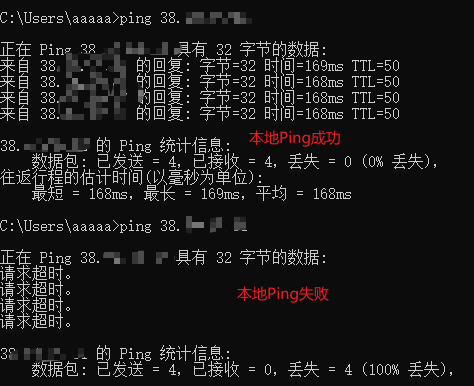
For pure overseas interconnection products like International BGP (L1), if you happen to encounter cross-border network fluctuations, you can try using the MTR tool for route tracing to see at which node the packets are being intercepted. Ensuring a clean local network without proxy software hijacking is an important prerequisite for solving remote management problems.
2. Exclude Firewall Interception and Port Rejection Issues
If the Ping test is completely normal, but you explicitly receive a Connection refused prompt when connecting, this usually means the request has reached the server but was securely intercepted—a phenomenon commonly referred to as SSH port 22 connection refused.
This situation is most common when a server is freshly provisioned or when firewall settings are misconfigured. VMRack's cloud server platform features an extremely high level of security protection by default. Please first log in to the VMRack cloud console, use the VNC remote connection function to enter the server internally, and execute the following commands to check and adjust the system's built-in firewall policies:
Bash
# -------------- For Ubuntu / Debian Systems --------------
# Check the current running status of the UFW firewall
sudo ufw status

# If it is inactive, it is not a firewall issue. If the firewall is active and port 22 is missing from the rules, execute the following command to allow TCP port 22
sudo ufw allow 22/tcp

# -------------- For CentOS / RHEL Systems --------------
# Check if the Firewalld firewall is running
sudo firewall-cmd --state

# Permanently allow the standard SSH port 22 in text mode
sudo firewall-cmd --permanent --add-port=22/tcp

# Reload the firewall configuration to make the newly added rule take effect immediately
sudo firewall-cmd --reload
In many cases, it is precisely because the firewall has not opened the standard port that SSH port 22 connection refused occurs. You need to manually execute the allow command to lift the restriction.

In addition to the firewall inside the operating system, do not forget to check the "Security Group" or "External Firewall" rules in the VMRack console. Ensure that the inbound rules include a policy that allows your local IP (or opens 0.0.0.0/0) to access TCP port 22. Only when both the internal and external dual firewalls are properly configured can the handshake signal of the remote connection smoothly pass through.
3. Check SSH Service Status and Core Configuration Files
After eliminating the external factors of the network and firewall, the final possibility is that the SSH service itself inside the server is not running normally, or a security defense mechanism has been triggered due to malicious scanning, resulting in SSH connection refused.
On the internet, brute-force attacks targeting the default port 22 never stop. If your server encounters a massive volume of malicious logins within a short period, system security policies may directly blacklist the relevant IP, manifesting as an SSH connection refused. At this point, you still need to log in to the system via the console's VNC terminal and run the following code to diagnose and repair the SSH service:
Bash
# Check the running status of the SSHD service on the server (check if it is active)
sudo systemctl status sshd

# If the service is found to have stopped unexpectedly (inactive/dead), execute the following command to force-restart it
sudo systemctl restart sshd

# Check system security logs to confirm whether the local IP has been banned by security policies (such as Fail2ban) due to too many failed login attempts
sudo tail -n 50 /var/log/auth.log | grep "sshd"
Meanwhile, it is recommended to use an editor to open the /etc/ssh/sshd_config configuration file and carefully check core parameters such as Port (whether the port number has been modified) and PermitRootLogin (whether root login is disabled).
Bash
# Open the core SSH configuration file using the nano editor for a compliance check
sudo nano /etc/ssh/sshd_config

# [Checklist Prompts]:
# 1. Confirm that there is no '#' comment symbol before Port 22 (if the port has been modified, the -p parameter must be used during local connection)
# 2. Confirm that PasswordAuthentication is set to yes (if using password login)
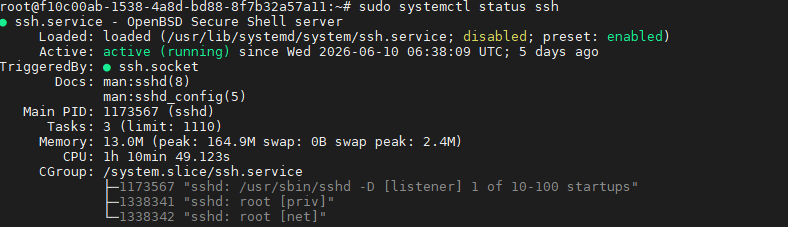
If you modified the default port for business security, you must use the corresponding port parameter when connecting locally; otherwise, the system will inevitably refuse your access.
Conclusion
In summary, when you encounter an SSH connection failure, there is no need to be overly anxious. You can typically achieve precise positioning and quick fixes through this three-step method: "Confirm local network routing -> Check internal and external firewall policies -> Verify server SSHD service status." As a self-developed cloud infrastructure service provider built on high-performance AMD processors, VMRack equips its self-built Los Angeles data center with UPS uninterruptible power supplies, intelligent monitoring, and 24/7 security watch, maximizing the stability and reliability of the infrastructure from both hardware and the underlying network. As long as the internal safety policies of the system are configured reasonably, you can perfectly enjoy a smooth and secure O&M experience comparable to dedicated servers.
- Troubleshooting and solutions for SSH connection failures to remote servers
- What to do if the cloud server can be pinged but cannot be connected via SSH?
- What are the methods for remotely connecting to a server via SSH?
- GIA CN2 VPS Server Basic Environment Configuration and System Acceleration Tutorial
- VMRack: A reliable CN2 GIA VPS - Recommended


- Products
- VPS Hosting
- VPS HostingUnmetered
- Bare Metal
- GPU Rental
- CDNPublic Beta
- Custom CDN
- Object StoragePublic Beta
- TranscoderPublic Beta