How to solve SSH connection failure?
In the daily management of cloud servers, SSH connection failure is a relatively common remote access fault. This situation usually manifests as the terminal not responding for a long time during connection, eventually throwing a "Connection timed out" error, or directly prompting "Connection refused". Failing to establish a normal SSH handshake not only interrupts normal O&M (Operations and Maintenance) management work but may also affect online businesses deployed on the server.
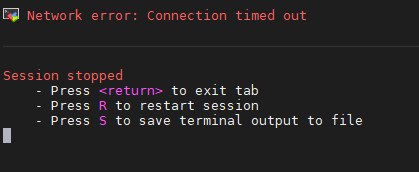
There are many reasons why an SSH connection to a Linux server fails, but they can basically be categorized into three major types: infrastructure status, network access control, and internal system service failures. In order to help users efficiently locate and solve the issue of SSH connection failure to the server, we have summarized a standardized three-step troubleshooting method so that you can dive from shallower to deeper levels and quickly restore the server's remote access channel.
Step 1: Check whether the VMRack backend cloud server is running
When the remote terminal SSH cannot connect to the Linux server, the primary prerequisite is to confirm that the target server is in a normal boot-up and running state. If the server itself is automatically suspended by the system due to planned maintenance, unexpected shutdown, or arrears, then any external SSH connection requests will not be delivered.
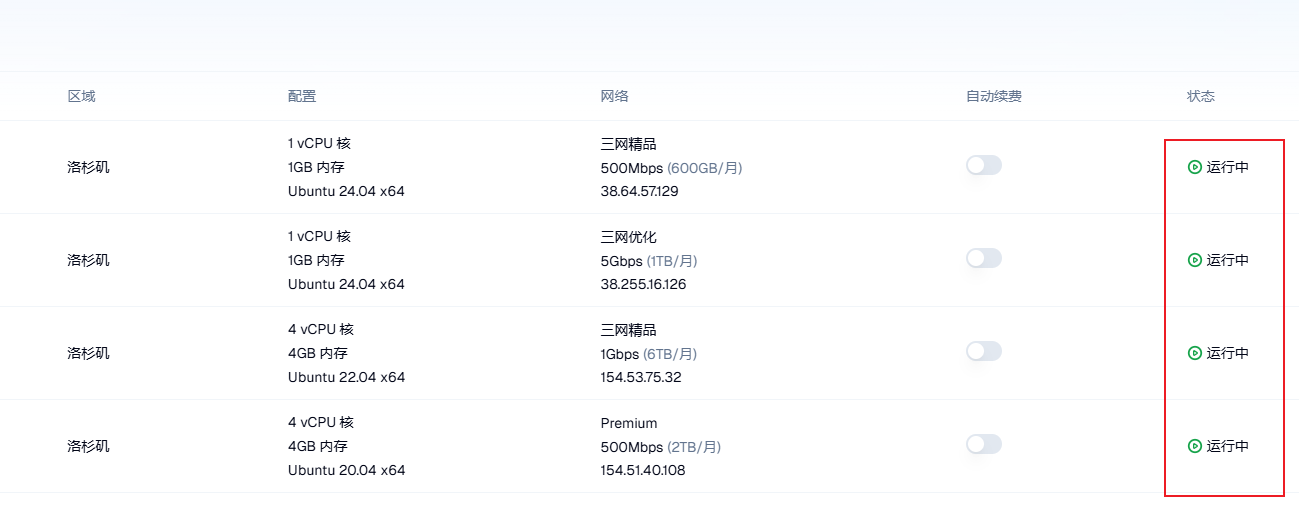
At this time, it is recommended that you log in to the VMRack official website management backend as soon as possible. Utilizing the fully automated control panel, you can clearly see the real-time status of the current VPS. If you find that the machine is in a "Stopped" or "Error" state due to misoperation, simply click to start it with one click.
Generally, when running high-concurrency applications or complex computing tasks, if the underlying system crashes due to resource exhaustion, the external network will often disconnect directly. Checking the machine status through the backend and executing a forced restart is the fastest and most effective means to restore the machine's basic responsiveness.
Step 2: Check VMRack backend firewall rules and whether ports are disabled
If it is confirmed that the cloud server is in a running state but still cannot be connected, then the problem is likely with the peripheral network access policy. The cloud provider's security groups and firewall rules act like security guards for the data center; once a policy is configured incorrectly, it will accidentally shut out normal management traffic.
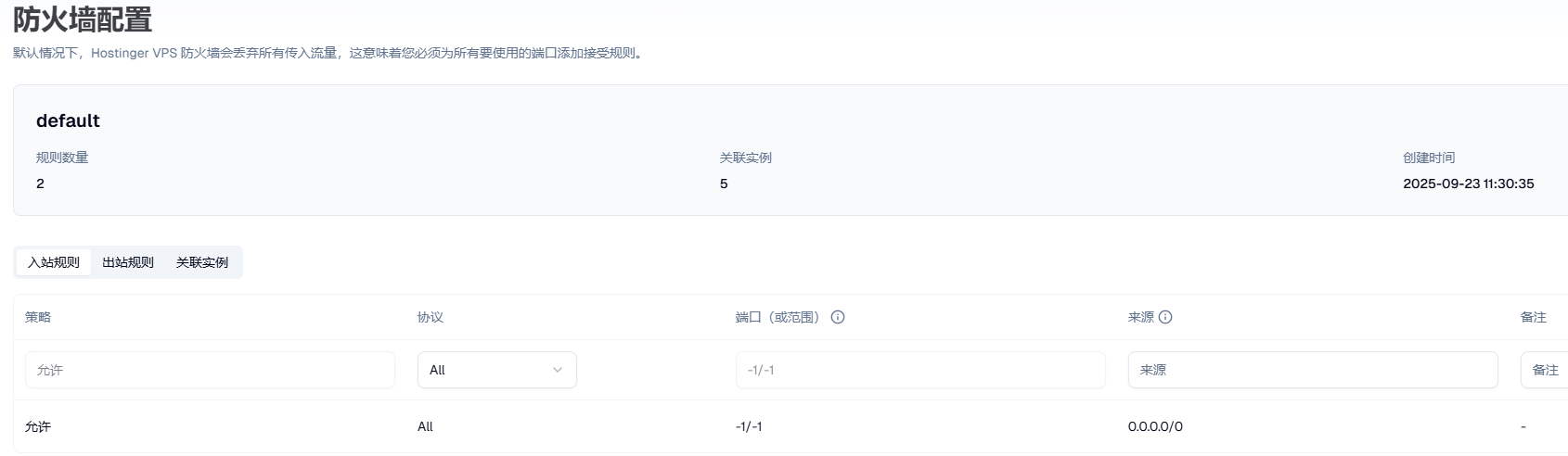
We need to enter the firewall rules management page in the VMRack backend and carefully check the current policy. Please focus on checking whether the SSH port you are using (the default is port 22, or a custom port if modified) is disabled in the inbound rules. If a rule is accidentally deleted or set to "Deny", you need to manually add a rule to allow this port.
Since modern cloud architectures support flexible network solutions (such as multiple IPv4, IPv6, internal IP, etc.), when configuring rules, you also need to ensure they are applied to the correct IP instances. Promptly troubleshooting and allowing commonly used management ports can effectively prevent connection failures caused by external network blocking.
Step 3: Log in via VNC to check if the SSH service is running
After the peripheral network and backend rules are both confirmed to be correct, if you still cannot connect to the server via SSH, it indicates that the problem has penetrated into the internal system layer of the server. At this time, because the external SSH channel is completely locked, we must rely on a low-level life-saving channel that does not depend on the external network for final rescue.
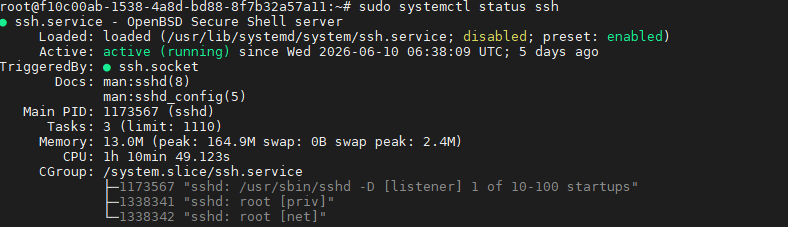
You can log directly into the internal system via the VNC remote console that comes with the VMRack backend. After successfully entering the terminal, the primary task is to check whether the core SSH service (sshd) is active. You can use the following commands to troubleshoot and fix it:
Bash
# Check if the SSH service is running
sudo systemctl status sshd

# If it shows Inactive (dead), execute the start command
sudo systemctl start sshd
If the service is running but still cannot connect, you also need to check whether the internal system firewall (such as ufw or iptables) conflicts with the backend rules and disables the corresponding port. For businesses with rigid access quality requirements, choosing high-quality three-network optimization or premium routes, combined with healthy internal system services, can make your remote O&M experience smoother.
Summary
All in all, when encountering an SSH connection failure, there is no need to panic blindly. Usually, you only need to follow the “outside-in” logic to sequentially confirm the server running status in the backend, check if backend firewall rules disable ports, and then log into the system via the embedded VNC to troubleshoot the SSH service itself. The vast majority of connection problems can be perfectly resolved within a few minutes. Choosing a cloud service provider with solid underlying technology and fully automated management functions can make your O&M work twice as effective with half the effort. VMRack will continue to escort your cloud business with its professional Los Angeles self-built data center solutions and integrated computing power services.


- Products
- VPS Hosting
- VPS HostingUnmetered
- Bare Metal
- GPU Rental
- CDNPublic Beta
- Custom CDN
- Object StoragePublic Beta
- TranscoderPublic Beta